






FAQ Documentation
Everything DP FAQ can do, setting by setting.
How to add the module, what each style does, and a full reference of every setting in the Content and Design tabs, plus the settings of each Question item.
Overview
Answer common questions in a tidy list that opens one answer at a time. Add a search box and an Open All button, and the module can add FAQPage schema for search engines.
DP FAQ shows Question items, each with a question and an answer. Pick a look in Content > FAQ Style, then choose the icon and its side, whether one answer opens at a time, whether the first question starts open, and the heading level for the questions. Turn on Search Box and Open All Button if you want them, and Add FAQ Schema to output FAQPage structured data.
In the builder
Search for DP and choose DP FAQ. It works the same in Divi 5 and Divi 4.
5 styles
Pick one in Content > FAQ Style.
Question items
The content lives in Question items inside the module. Add, reorder and duplicate them like any Divi child module.
Adding it to a page
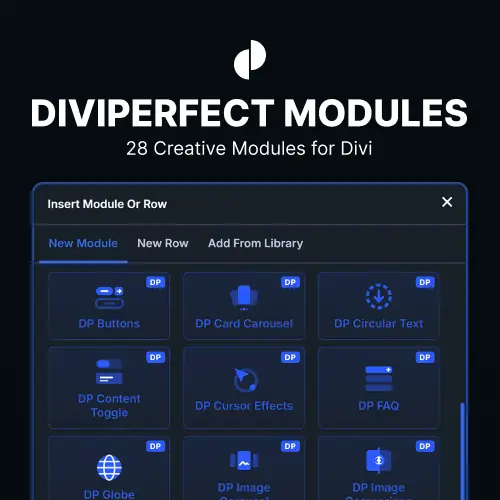
DP FAQ is part of DiviPerfect Modules. Once the plugin is active, the module is in the builder's module list.
Add the module
In the Divi builder, click the + button to add a module, search for DP and choose DP FAQ.
Add your questions
New modules start with sample questions so you can see the style straight away. Open each Question to set its content, or add more with the + button inside the module. On Divi 4, new parent modules start empty: add the items with the + button.
Pick a style
Choose a look in Content > FAQ Style.
Fine-tune the design
Use the Design tab for sizes, colours and fonts, and Advanced for CSS classes, custom CSS and visibility, like any Divi module. Empty colour settings use the style's own colours.
How long does delivery take?
Most orders arrive in 3 to 5 working days. You get a tracking link as soon as your order ships.
Can I return something?
Yes. Send it back within 30 days and we refund you in full.
These items cannot be returned:
- Gift cards
- Custom orders
Do you ship abroad?
We ship to most countries. Delivery times and costs show at checkout.
How do I change my order?
Reply to your order email within an hour of ordering and we will change it before it ships.
No questions match your search.
Styles
Choose a style in FAQ Style. See every style running live.
Lines
Questions separated by lines.
Cards
Each question in its own card.
Boxed
The list in one box.
Numbered
Numbered questions.
Two Columns
The questions split into two columns.
Features
DP FAQ shows a list of questions whose answers open and close. It can add a search box, an Open All button and FAQ schema for search engines. Use it for help pages, product pages, pricing pages or anywhere visitors have the same few questions.
Five FAQ styles
Lines, Cards, Boxed, Numbered and Two Columns. Two Columns shows one column on narrow screens.
Icons
Show a plus or an arrow on the right or left of each question, or no icon at all.
One answer at a time
Opening a question can close the one that was open. You can also open the first question, or any question, from the start.
Search box
A box above the questions filters them as visitors type, with your own placeholder and no-results text.
Open All button
A button that opens or closes every answer, with your own button text.
FAQ schema
Adds FAQPage structured data (JSON-LD) for search engines, with every question on the page in one block.
Links to a question
A link to the page ending in #name opens that question. Each question gets a Link Name, made from the question if you leave it empty.
Heading level
Pick H2 to H5, or not a heading, so the questions fit the heading order of the page.
Works without JavaScript
Each question is a native details element, so answers still open if scripts fail. Reduced-motion settings are respected.
How to use it
Step-by-step guides for the things people most often want to do with DP FAQ.
How to pick and switch the FAQ style
- Open the module and go to Content > Questions > FAQ Style.
- Pick Lines, Cards, Boxed, Numbered or Two Columns.
- Switch styles at any time. Your questions stay the same.
- For Cards, set the gap in Design > FAQ Colors & Sizes > Space Between Cards.
How to add and edit questions
- Click the plus button in the module to add a Question.
- Open a Question > Content > Question and type the question.
- Write the Answer. Leave an empty line between paragraphs. Links, bold, italics and lists are allowed.
- Turn on Start Open to show this answer when the page loads.
- Drag questions to change their order.
How to set the icon and opening behaviour
- Go to Content > Questions > Icon and pick Plus, Arrow or None.
- Pick the Icon Side: Right or Left.
- Turn on One Answer At A Time to close the open answer when another opens.
- Turn on Open The First Question to start with the first answer open.
How to add a search box and Open All button
- Go to Content > Search And Open All and turn on Search Box.
- Type the Search Placeholder and the No Results Text.
- Turn on Open All Button and type the Open All Text and Close All Text.
- Style the search box in Design > Search Box.
How to add FAQ schema
- Go to Content > Schema and turn on Add FAQ Schema.
- Every DP FAQ question on the page is added in one FAQPage block.
- Turn it off if an SEO plugin already adds FAQ schema for the page.
- Check the page with a structured data testing tool after publishing.
How to link straight to a question
- Open a Question > Content > Question and type a Link Name, for example shipping.
- Leave it empty to make one from the question text.
- Link to the page with #shipping at the end, for example /help/#shipping.
- The question opens when the page loads, and also when the link is clicked on the same page.
How to set the heading level
- Go to Content > Questions > Question Heading Level.
- Pick H2, H3, H4 or H5 to fit the headings around the FAQ.
- Pick Not a heading when the questions should not appear in the page outline.
How to change the colours and sizes
- Go to Design > FAQ Colors & Sizes.
- Set Accent Color (the icons, numbers and the open question), Text Color and Line Color.
- For Cards and Boxed, set the Card Background.
- Set Corner Radius (cards, boxed and the search box) and Space Between Cards.
- Empty colours use the style's built-in colours or follow the site's Divi theme colours (Primary/accent, Heading and Body text). Changing those Divi colours restyles every module, so use these settings to change this FAQ only.
How to style questions, answers and boxes
- Go to Design > Questions to set the question font and spacing.
- Go to Design > Answers for the answer text.
- Go to Design > Numbers for the large numbers of the Numbered style.
- Go to Design > Question Boxes to add a background, spacing, border or shadow to each question.
- Go to Design > Icons to give the icons a background and border.
Tips
- Use only one source of FAQ schema per page. Turn off Add FAQ Schema if your SEO plugin adds it.
- Answers are in the page source even when closed, so search engines can read them.
- Pick the Question Heading Level that fits the page, for example H3 under an H2 section title.
- In Divi 4 the same settings are in the same groups. The Question Boxes toggle there offers background colour, margin, padding, width, max width, min height, height, border and box shadow.
Design Elements
The parts of DP FAQ you can style in the Design tab, and the options each part has. In Divi 4 the same groups have Background Color, Margin, Padding, Width, Max Width, Min Height, Height, Border and Box Shadow in the same toggle. Empty colour settings use the style's own colours, and text and accent colours follow your Divi theme colours.
Question Boxes
Design tab
Each question and answer pair.
- Question Boxes: Background; Margin and Padding; Border (width, style, colour, rounded corners); Box Shadow.
Tip: Use this to give the Lines style a light background per question without switching to Cards.
Questions
Design tab
The question text.
- Questions: Font (family, weight, style, size, colour, line height, letter spacing, alignment, text shadow); Margin and Padding.
Tip: The open question takes the Accent Color.
Answers
Design tab
The answer text.
- Answers: Font (family, weight, style, size, colour, line height, letter spacing, alignment, text shadow); Margin and Padding.
Tip: A slightly smaller size than the question helps visitors scan the list.
Numbers
Design tab
The large numbers of the Numbered style.
- Numbers: Font (family, weight, style, size, colour, line height, letter spacing, alignment, text shadow).
Tip: A light weight keeps big numbers from overpowering the questions.
Icons
Design tab
The plus or arrow icons.
- Icons: Background; Border (width, style, colour, rounded corners).
Tip: Add a background and a round border radius to put each icon in a circle.
Search Box
Design tab
The search field above the questions.
- Search Box: Font (family, weight, style, size, colour, line height, letter spacing, alignment, text shadow); Background; Border (width, style, colour, rounded corners); Box Shadow.
Tip: Corner Radius in FAQ Colors & Sizes also rounds the search box.
FAQ Colors & Sizes
Design tab
The colours and sizes of the whole FAQ.
Options: Accent Color, Card Background, Text Color, Line Color, Corner Radius, Space Between Cards
Tip: Card Background only shows for Cards and Boxed, and Space Between Cards only for Cards.
Shadows
Design tab
The drop shadows the module draws under its images, cards and panels.
Options: Built-In Shadows
Tip: Turn it off for a flat look. Divi's own Box Shadow settings still work.
Settings Reference
Every setting DP FAQ adds, in the order you find it in the builder. Divi's standard Design options (fonts, spacing, borders, box shadow, filters, transforms, animation) and the Advanced tab work as they do on any Divi module.
Questions
Content tab
- FAQ Style: Lines: questions divided by thin lines. Cards: each question in its own card. Boxed: one box with the questions inside. Numbered: large numbers before each question. Two Columns: the questions split into two columns (one column on narrow screens). Options: Lines, Cards, Boxed, Numbered, Two Columns. Default: Lines.
- Icon: Options: Plus, Arrow, None. Default: Plus.
- Icon Side: Options: Right, Left. Default: Right.
- One Answer At A Time: Opening a question closes the one that was open. On or off. Default: on.
- Open The First Question: On or off. Default: off.
- Question Heading Level: The heading tag of each question, so it fits the headings around it on the page. Options: H2, H3, H4, H5, Not a heading. Default: H3.
Search And Open All
Content tab
- Search Box: A box above the questions that filters them as visitors type. On or off. Default: off.
- Search Placeholder: Text.
- No Results Text: Text.
- Open All Button: A button that opens or closes every answer. On or off. Default: off.
- Open All Text: Text.
- Close All Text: Text.
Schema
Content tab
- Add FAQ Schema: Adds FAQPage structured data (JSON-LD) for search engines, with every question on the page in one block. Turn it off if an SEO plugin already adds FAQ schema for this page. On or off. Default: on.
FAQ Colors & Sizes
Design tab
- Accent Color: The icons, numbers and the open question. Color. Default: #2c59fa.
- Card Background: Cards and Boxed: the background. Color. Default: #f1f1f0.
- Text Color: Color. Default: #060606.
- Line Color: The lines and borders. Color. Default: rgba(6,6,6,0.14).
- Corner Radius: Cards, Boxed and the search box. Range: 0 to 40 px. Default: 14px.
- Space Between Cards: Cards: the space between the cards. Range: 0 to 40 px. Default: 12px.
Shadows
Design tab
- Built-In Shadows: The drop shadows this module draws under its images, cards and panels. Off removes them; Divi's own Box Shadow settings still work. On or off. Default: on.
Question Settings
Each Question inside DP FAQ has its own settings. Open an item in the builder to change them.
Question
Content tab of each Question
- Question: Text.
- Answer: Leave an empty line between paragraphs. Links, bold, italics and lists are allowed. Text.
- Start Open: On or off. Default: off.
- Link Name: Optional. A link to this page ending in #name opens this question. Leave empty to make one from the question. Text.
Support
Something not working as expected, or a question this page does not answer? Get in touch and we will help you get FAQ working on your site.

Frequently Asked Questions
Common questions about DP FAQ.
Does it add FAQ schema?
Yes. Turn on Add FAQ Schema and the module outputs FAQPage structured data for its questions.
Can I link to a question?
Yes. Give the question a Link Name and link to it with #link-name.
Can several answers be open at once?
Yes. Turn off One Answer At A Time.
Does it work with Divi 5 and Divi 4?
Yes. The module has the same settings and styles in both builders.
Can I use it more than once on a page?
Yes. Each copy of the module has its own settings.