









Divi Review Hub
V2 Available Now!
A Figma-style comment and annotation tool built directly into your Divi website. Review, annotate, and collaborate without leaving the page.
Overview & Features
Divi Review Hub adds a floating review toolbar to your Divi website that lets you and your clients leave pinpoint comments directly on any part of the page — just like Figma's comment tool. No screenshots, no emails back and forth, no guessing what they mean. Click anywhere on the page to place a pin, type your feedback, and share the URL.
Click To Comment
Place a comment pin anywhere on the page with a single click.
Drag To Select An Area
Draw a selection box over a specific section, just like Figma.
@Mention Team Members
The Field Map Helper displays the exact field IDs from your last form submission so you can map Subject, dropdowns, and any other custom fields to named lead properties. Unmapped fields are automatically saved as timestamped notes on the lead.
Resolve & Re-Open Comments
Mark feedback as done and track what's been actioned.
Filter By Status
View All, Open, or Resolved comments at a glance.
Attach Images
Paste or drop an image directly into a comment.
Reply Threads
Reply to any comment to keep conversations organised.
Light & Dark Mode
Toggle the entire review UI between light and dark.
Keyboard Shortcuts
Press C to toggle comment mode, Cmd/Ctrl+Shift+R to toggle review mode.
Installation
Download the plugin
Download divi-review-hub.zip from your DiviPerfect account or the Elegant Themes Marketplace.
Upload to WordPress
In your WordPress admin, navigate to Plugins → Add New → Upload Plugin. Click Choose File, select the zip you downloaded, then click Install Now
Activate the plugin
Once the upload completes, click Activate Plugin. The plugin is now active and running on your site with sensible defaults.
Open the settings panel
Go to DiviPerfect → Divi Review Hub in your WordPress admin menu.
The Review Toolbar
When Review Hub is active, a floating toolbar appears at the bottom centre of every eligible page. The toolbar contains:
Hub Icon + Badge
Shows the number of open comments on the current page
Review Mode Toggle
Turns the review overlay on or off for your session
Status Dot
Green when review mode is on
All / Open / Resolved
Filter which comment pins are visible
+ Comment (C)
Activates comment placement mode
Sun / Moon icon
Switches between light and dark theme
Avatar
Shows the currently logged-in user
How to Leave a Comment
Your comment pin appears on the page immediately. Anyone else viewing the page in review mode will see it.
1. Click the Review Mode toggle in the toolbar to turn review mode on
2. Click the + Comment button (or press C on your keyboard) to enter comment mode — your cursor becomes a crosshair
3. Click anywhere on the page to drop a point pin, or click and drag to select an area
4. Type your comment in the panel that appears
5. Optionally @mention a team member or attach an image
6. Click Send comment
Settings Reference
Placing Area Comments
Instead of a single pin, you can highlight a region of the page:
- Enter comment mode (press C or click + Comment)
- Click and drag to draw a rectangle over the area you want to annotate
- Release — a selection box appears with a pin at the top-left corner
- Type your comment and send
The selection box remains visible on the page so reviewers can see exactly what area the comment refers to.
@Mentions
To notify a specific team member in a comment:
- While typing in the comment box, type @ followed by their name
- A suggestion list appears — use arrow keys or click to select
- The selected name appears as a highlighted chip in your comment
- The mentioned user will be able to see the comment when they view the page
Attaching Images
You can attach a screenshot or image to any comment:
- Open the comment panel
- Click the image icon below the text box, or paste an image directly from your clipboard, or drag and drop an image file
- The image is uploaded and attached to the comment automatically
Exporting Comments
Administrators can export all comments as a CSV file:
- Go to DiviPerfect → Review Hub
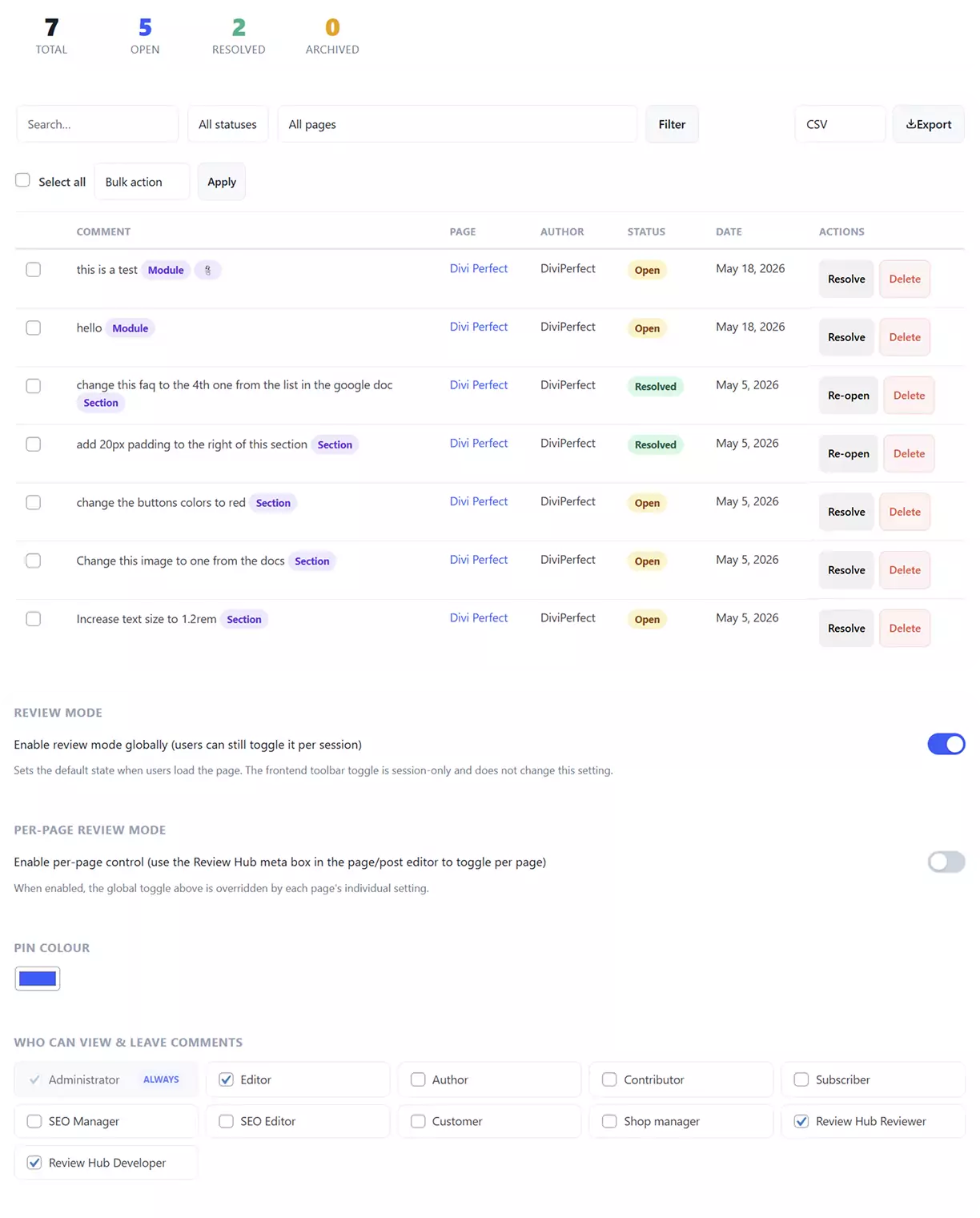
- Scroll to the comments table
- Click Export CSV or HTML
The export includes the comment content, author, date, page, status, and any @mentions.
Deleting Comments
To remove a comment:
- Click the pin to open the comment panel
- Click Delete under the comment
- The pin and comment are permanently removed
Light and Dark Mode
Click the sun icon (in dark mode) or moon icon (in light mode) in the toolbar to switch the entire review UI — toolbar and all comment panels — between light and dark themes. Your preference is saved automatically and remembered on your next visit.
Admin Settings
Go to DiviPerfect → Review Hub in your WordPress admin to configure:
Review Mode
Toggle whether review mode is enabled globally across your site. When enabled, logged-in users with the correct role will see the toolbar on every page.
This is the default state when users load a page. The toolbar toggle in the browser is session-only and does not change this setting.
Per-Page Review Mode
When enabled, you can control review mode individually per page or post from the page editor. Each page has a Review Hub meta box where you can enable or disable the review toolbar for that page specifically.
When per-page mode is active, the global setting above is overridden by each page's individual setting.
Roles and Permissions
Divi Review Hub adds two custom WordPress roles:
Reviewer: View comment pins, leave new comments, reply to comments
Developer: View, leave, reply to, and resolve comments
Administrators and Editors automatically have full access including resolving, deleting, and managing all settings.
You can assign the Reviewer or Developer role to any WordPress user from Users → All Users in your admin.
Resolving Comments
When feedback has been addressed:
- Open the comment by clicking its pin on the page
- Click Resolve in the comment header
- The pin changes colour and the comment is marked as resolved
To reopen a resolved comment, click the pin and click Re-open.
Use the Open / Resolved filter buttons in the toolbar to show only the comments you need to see.
Keyboard Shortcuts
C: Toggle comment mode on / off
Cmd / Ctrl + Alt + R: Toggle review mode on / off
Arrow keys: Navigate the @mention suggestion list
Enter / Tab: Select a highlighted @mention suggestion
Escape: Close the @mention dropdown
Support
If you run into any issues or have questions not covered in this documentation, the DiviPerfect support team is happy to help.
Reach out via the support tab on the Elegant Themes Marketplace product page, or email us directly at hello@diviperfect.com. We aim to respond within 24 hours on business days.

Frequently Asked Questions
Find answers to the most common questions about our Divi Review Hub Plugin.
Do clients need a WordPress account to leave comments?
Yes. Users must be logged in to place comments. You can create WordPress accounts for clients and assign them the Reviewer role — they will not have access to any admin areas.
Can I use Review Hub on any page, including Divi Theme Builder templates?
Review Hub loads on standard singular pages and posts. Theme Builder template contexts (global headers, footers) are not currently supported.
Will the toolbar show to all site visitors?
No. The toolbar only appears for logged-in users who have the correct role permissions. Regular site visitors see nothing.
Can I leave comments on top of links and buttons?
Yes. Divi Review Hub uses an invisible overlay layer that sits above all page elements, so you can place pins on links, buttons, images, and any other clickable element without accidentally navigating away.
What happens to comments when I update a page?
Comments are stored separately from page content and are not affected by page updates or Divi builder changes.
Can multiple people review at the same time?
Yes. Each user's comments are saved to the server in real time. Reload the page to see comments left by others.
Is there a limit to how many comments a page can have?
The system supports up to 500 comments per page. For most review workflows this is more than sufficient.
The toolbar is not appearing on my page
Check that review mode is enabled in DiviPerfect → Review Hub settings. Also confirm the logged-in user has the Reviewer, Developer, Editor, or Administrator role.
Clicking the + Comment button does nothing
Ensure review mode is turned on first (the toggle in the toolbar must be active). Comment mode requires review mode to be on.
The @mention dropdown is not showing
Start typing at least one character after the @ symbol. The dropdown only appears when there are matching WordPress users to suggest.
Comments are visible but I can't click the pins
If comment mode is active (crosshair cursor showing), click the + Comment button or press C to turn it off. In browse mode, pins are fully clickable.