







Divi Launchpad
Export your entire Divi website into a single installable plugin. Clone any build to any site in minutes.
Overview & Features
Divi Launchpad is a WordPress plugin built for Divi designers and agencies. It packages your entire Divi website — every page, every setting, every colour, every template — into a single downloadable ZIP file. Install that ZIP on any WordPress site and your full design is live instantly, with no manual rebuilding required.
All Pages & Posts
Including full Divi builder content, featured images, and page templates.
Child Theme
Your active Divi child theme including any customised functions.php and style.css.
Divi Theme Options
Typography, layout width, colours, and all global Divi panel settings.
Global Colours
Your full Divi 5 global colour palette.
Module Presets
All saved Divi module presets.
Theme Builder Templates
Custom headers, footers, and body templates with their page conditions.
Divi Library Layouts
All saved layouts in your Divi Library.
Navigation Menus
All menus and their item structure.
Images
All media used across your pages, packaged and re-uploaded on install.
Site Settings
Blog name, tagline, date formats, reading settings, permalink structureour pages, packaged and re-uploaded on install.
Custom CSS
WordPress Additional CSS and Divi's custom CSS field.
Front Page & Blog Page
Reading settings correctly restored on the destination site.
Installation
Download the plugin
Download divi-launchpad.zip from your Elegant Themes Marketplace.
Upload to WordPress
In your WordPress admin, navigate to Plugins → Add New → Upload Plugin. Click Choose File, select the zip you downloaded, then click Install Now
Activate the plugin
Once the upload completes, click Activate Plugin. The plugin is now active and running on your site with sensible defaults.
Open the settings panel
Go to DiviPerfect → Divi Launchpad in your WordPress admin menu.
How to Export Your Site
Your package is a standard WordPress plugin ZIP file.
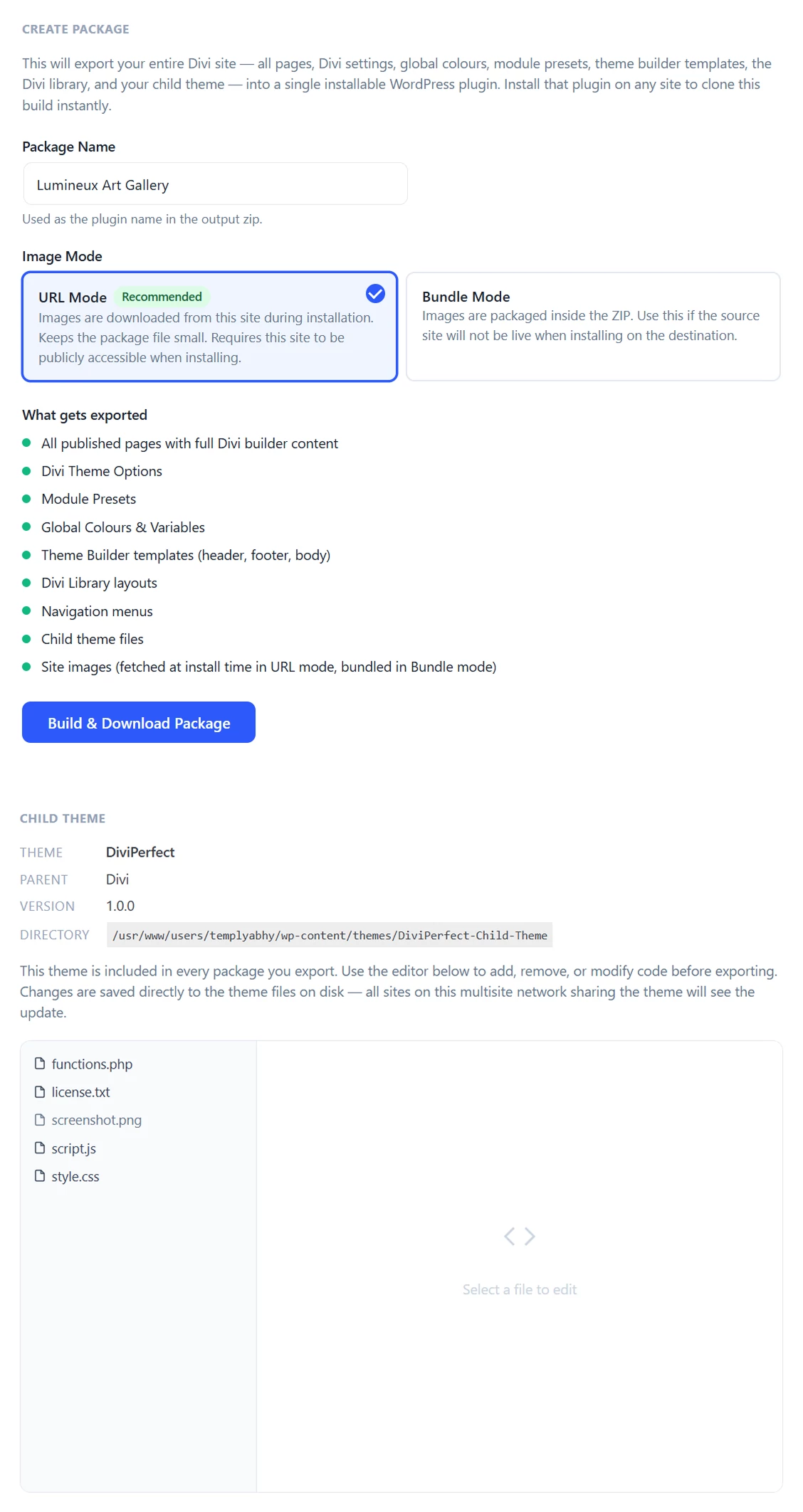
1. Go to DiviPerfect → Launchpad in your WordPress admin
2. Enter a Package Name (this becomes the plugin name, e.g. "My Agency Site")
3. Click Build & Download Package
4. Wait for the export to complete — this may take 30–120 seconds depending on the size of your site
5. Click Download when the package appears in the Previously Built Packages list
How to Install a Package on a New Site
1. Make sure Divi (or a Divi child theme) is active on the destination WordPress site
2. Go to Plugins → Add New → Upload Plugin
3. Upload the package ZIP and click Install Now
4. The plugin activates automatically and launches the Setup Wizard
5. The wizard runs through the following steps automatically:
- Install child theme
- Upload demo images to media library
- Import all pages and posts
- Import navigation menus
- Import Theme Builder templates
- Import module presets and global colours
- Configure reading settings and permalinks
6. When complete, click Visit Site to see your cloned website
Child Theme Editor
Divi Launchpad includes a built-in child theme editor so you can review and edit your child theme files before exporting.
1. Go to DiviPerfect → Launchpad
2. Scroll to the Child Theme section
3. Select any file from the sidebar (style.css, functions.php, or any PHP/CSS file)
4. Edit directly in the browser and click Save File
5. Changes are saved to disk immediately and included in your next export
Note: If using the WordPress Multisite changes made in the editor apply to the live theme on the current site. All sites sharing the same child theme will see the update.
Support
If you run into any issues or have questions not covered in this documentation, the DiviPerfect support team is happy to help.
Reach out via the support tab on the Elegant Themes Marketplace product page, or email us directly at hello@diviperfect.com. We aim to respond within 24 hours on business days.

Frequently Asked Questions
Find answers to the most common questions about our Divi Launchpad Plugin.
Can I install the package on multiple sites?
Yes. There are no licence restrictions on the generated package. Install it on as many sites as you need.
Will it overwrite existing content on the destination site?
Pages are matched by slug. If a page with the same slug already exists, it is updated rather than duplicated. New pages are created fresh.
What happens to images?
All images used across your pages are downloaded and re-uploaded to the destination site's media library. Image URLs in all page content are automatically updated to point to the new location.
What happens if the export fails or times out
Increase your server's PHP max_execution_time to at least 300 seconds. Large sites with many images may take longer to package.
Are API keys or licence keys included in the export?
No. All sensitive data (Divi licence keys, API tokens, and similar credentials) are explicitly excluded from the export.
My images are missing after install
This can happen if your source site uses a CDN or external image host. Divi Launchpad can only include images hosted on the source WordPress install.
Child theme not activating after install
Ensure the destination site does not already have a theme with the same slug installed. If it does, deactivate and delete the existing theme first, then re-run the wizard.