








Divi Smooth Scroll
V2 Available Now!
Add physics-based, silky-smooth scrolling to any Divi 5 site — now with section snapping, horizontal scroll sections, a reading progress bar, custom cursors, and more. Dial in the exact feel from one live settings panel. No code required.
Overview & Features
If you've ever compared your Divi site's scroll to the fluid, momentum-driven feel of a premium portfolio or SaaS website and wondered why yours feels stiff in comparison, this plugin is the answer.
Divi Smooth Scroll replaces the browser's default instant-jump scroll with a physics-based animation engine. Every wheel tick is intercepted and eased toward its target position, producing the silky, inertia-like glide used by agencies and studios worldwide.
It has grown into a complete scroll-experience toolkit: section snapping, horizontal scroll sections, a reading progress bar, custom cursors, navbar hide, keyboard smoothing, and per-section overrides — all controlled from one clean settings panel inside your WordPress admin. No configuration files, no JavaScript to paste.
Physics-based easing
A frame-rate-aware lerp engine keeps scrolling feeling identical at 60 Hz and 120 Hz. Every wheel tick eases toward its target instead of jumping.
Section snapping
Locks each Divi section into view as you scroll, turning a page into clean, full-screen steps. Tune the feel and reserve it for the pages that suit it.
Horizontal scroll sections
Turn any wide section into a horizontal scroller. Add the dss-horizontal class or let auto-detect find it; the wheel and trackpad pan content sideways until it is flush with the end, then vertical scrolling resumes.
Scroll progress bar
A thin, brand-coloured bar that fills as visitors read, giving long pages a visible finish line. Set the colour and position to match your site.
Custom cursor & image trail
Replace the pointer with a custom cursor and an optional image trail. Tune the size, duration and spacing for a signature touch on hero and portfolio pages.
Navbar hide on scroll
Let your header slip away as visitors scroll down and return the moment they scroll back up, giving your content the full screen.
Keyboard smoothing
Arrow keys, Page Up and Page Down, Home and End all get the same eased motion as the wheel, so keyboard navigation feels just as fluid.
Per-section speed overrides
Set ease and intensity for individual sections with a CSS class, so a showcase can glide slowly while the rest of the page stays brisk.
Live settings panel
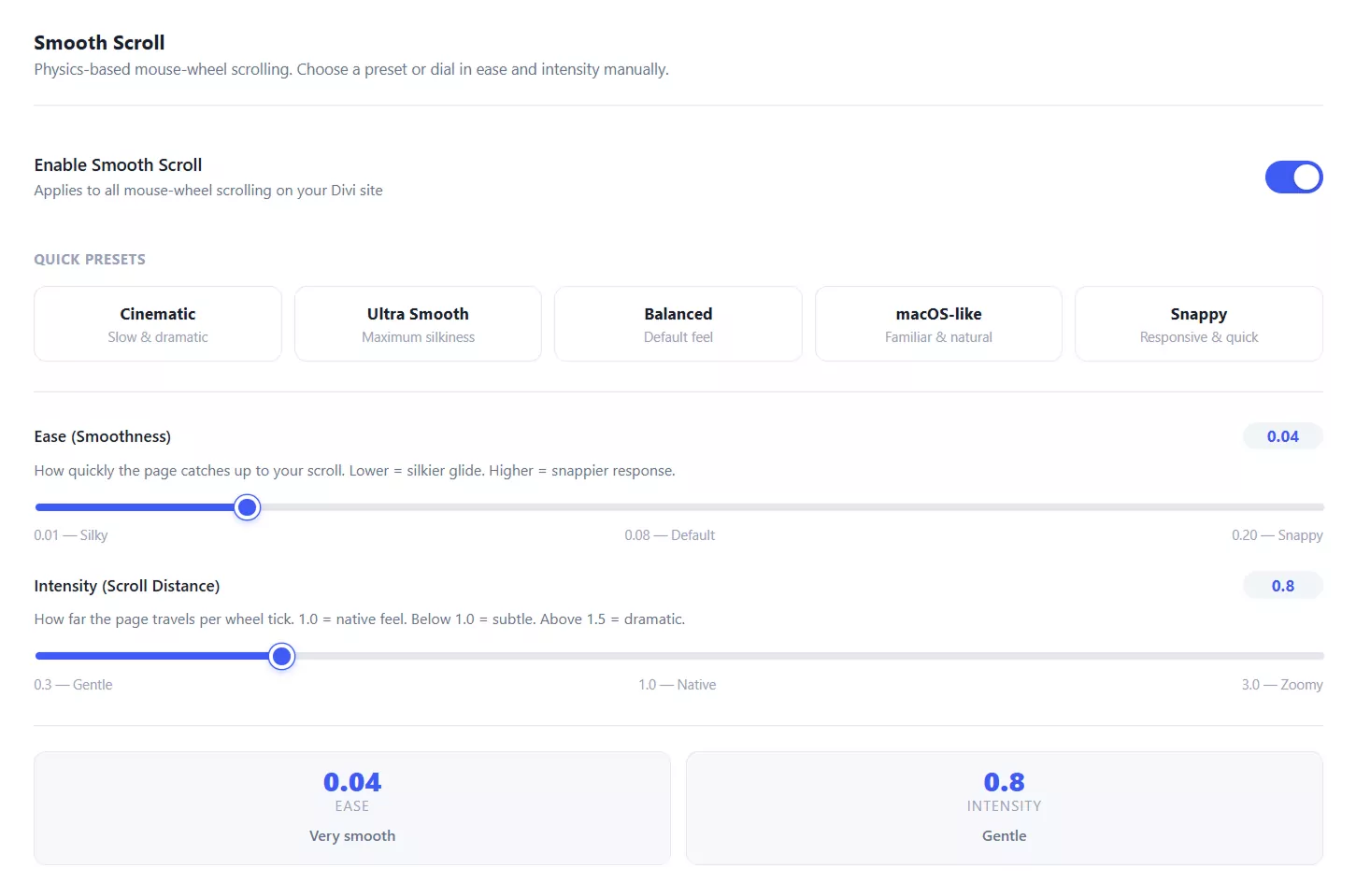
Adjust ease and intensity with sliders and watch the badges update in real time, so you know exactly what you are setting before you save. Settings are organised into clear tabs.
Touch-device aware
Automatically disables itself on phones and tablets — they already have native momentum scrolling — so mobile visitors get the experience they expect.
Developer API
Adjust settings at runtime from the browser console with DiviSmoothScroll.setEase() and .setIntensity() for quick testing and demos.
Zero performance impact
Pure vanilla JavaScript using requestAnimationFrame. No jQuery, no lodash, no external dependencies, and nothing render-blocking.
Installation
Installing Divi Smooth Scroll takes under five minutes and requires no technical knowledge. Follow the steps below to get up and running.
Download the plugin
After purchase, download the divi-smooth-scroll.zip file from your Elegant Themes Marketplace customer dashboard.
Upload to WordPress
In your WordPress admin, navigate to Plugins → Add New → Upload Plugin. Click Choose File, select the zip you downloaded, then click Install Now
Activate the plugin
Once the upload completes, click Activate Plugin. The plugin is now active and running on your site with sensible defaults.
Open the settings panel
Go to DiviPerfect → Smooth Scroll in your WordPress admin menu. Adjust ease and intensity, explore the Scroll Tools, Cursor and Progress Bar tabs, then click Save Settings.
Settings Reference
All settings live under Settings → Smooth Scroll in your WordPress admin. Changes take effect on the frontend as soon as you click Save.
Ease (Smoothness)
Controls how quickly the page catches up to the scroll target. Lower values feel silkier and more gradual; higher values feel snappier and more immediate. Range 0.01 (silky) to 0.20 (snappy), with 0.08 as the balanced default.
Intensity (Scroll Distance)
Multiplies how far each wheel tick moves the page. 1.0 matches native browser distance. Go below 1.0 for subtle scrolling, above 1.5 for a more dramatic throw. Range 0.3 (gentle) to 3.0 (zoomy).
Settings tabs
Beyond the core sliders, settings are grouped into clearly labelled tabs — Scroll Tools (horizontal sections and navigation type), Section Snapping, Cursor, and Progress Bar — so each feature has its own controls.
Developer API
Prefer the console? Adjust settings at runtime with DiviSmoothScroll.setEase() and DiviSmoothScroll.setIntensity().
Support
If you run into any issues or have questions not covered in this documentation, the DiviPerfect support team is happy to help.
Reach out via the support tab on the Elegant Themes Marketplace product page, or email us directly at hello@diviperfect.com. We aim to respond within 24 hours on business days.

Frequently Asked Questions
Find answers to the most common questions about the Divi Smooth Scroll plugin.
Will this work with Divi 5?
Yes. The plugin runs as an independent JavaScript layer on top of the page — it is not a Divi module and does not interact with the builder internals. It is compatible with Divi 4 and Divi 5.
Does it affect mobile / tablet visitors?
No. The plugin automatically detects touch-only devices and disables itself, leaving native touch momentum scrolling fully intact for mobile and tablet users.
Will it break my existing scroll-triggered animations?
In most cases, no. The plugin uses window.scrollTo(), which fires native scroll events, so any animation library listening to the scroll event — including Divi's own scroll effects — continues to work.
What about users who have reduced motion enabled?
The plugin fully respects the prefers-reduced-motion: reduce media query. If a visitor has this OS-level setting enabled, the plugin will not activate for them — they receive standard browser scrolling.
Can I use this alongside other scroll plugins?
We recommend using only one scroll plugin at a time. Running multiple scroll interceptors simultaneously can cause conflicts. If you have another smooth-scroll plugin active, deactivate it before enabling this one.
Does this slow down my website?
No. The script is small, loads in the footer, and uses requestAnimationFrame — the most efficient animation method available in browsers. It adds zero render-blocking resources to your page.
What if I want to revert to native scrolling temporarily?
Simply toggle the Enable Smooth Scroll switch to off in the settings and save. The script will no longer load on the frontend. Toggle it back on whenever you are ready.
How does section snapping work?
When enabled, the page eases and locks each section into the viewport as you scroll, one full screen at a time. It works best on pages built from a handful of full-height sections, and you can leave it off for blogs and reference pages where free scrolling is better.
How do I create a horizontal scroll section?
Add the CSS class dss-horizontal to any section in its Advanced settings, or build the section wider than the viewport and let auto-detect find it. The wheel and trackpad pan it sideways; once the content is flush with the end of the column, scrolling hands back to the page.
Can I add a custom cursor and image trail?
Yes. The Cursor tab lets you enable a custom cursor and an optional image trail, with controls for the trail size, duration and spacing. Use a small, simple graphic and reserve it for pages where atmosphere helps.
Can different sections scroll at different speeds?
Yes. Per-section overrides let you set ease and intensity on an individual section with a CSS class, so a showcase can glide while the rest of the page stays brisk.