









Why WordPress Thumbnails Need to Be Regenerated
WordPress generates several thumbnail sizes from every uploaded image: thumbnail, medium, large, and any custom sizes registered by your theme or plugins. These sizes are created once, at upload time. Several common situations leave them out of date:
- You changed theme — the new theme registers different image sizes
- You installed a plugin that adds custom image sizes
- You changed the quality setting in an image plugin after already having images
- You added new image sizes to your functions.php
- WordPress core updated and changed default sizes
In all these cases the original file is still on disk but WordPress has not regenerated the thumbnail sizes to match. Old thumbnails remain at the wrong dimensions or the wrong quality level.
Regenerating Thumbnails with Divi Image Compressor
Divi Image Compressor includes a Regenerate Thumbnails tool in the Bulk Compress tab. It re-generates all registered WordPress image sizes for every image in your media library, using your current quality setting. You do not need a separate plugin — the functionality is built in, and it respects your quality preferences.

How the Regeneration Works
The plugin processes images in batches of three (thumbnail regeneration is CPU-intensive, so smaller batches protect shared hosting). A progress bar shows how many images have been processed and how many remain. A Stop button lets you halt at any time without corrupting already-processed images.
After Regeneration — Check Your Statistics
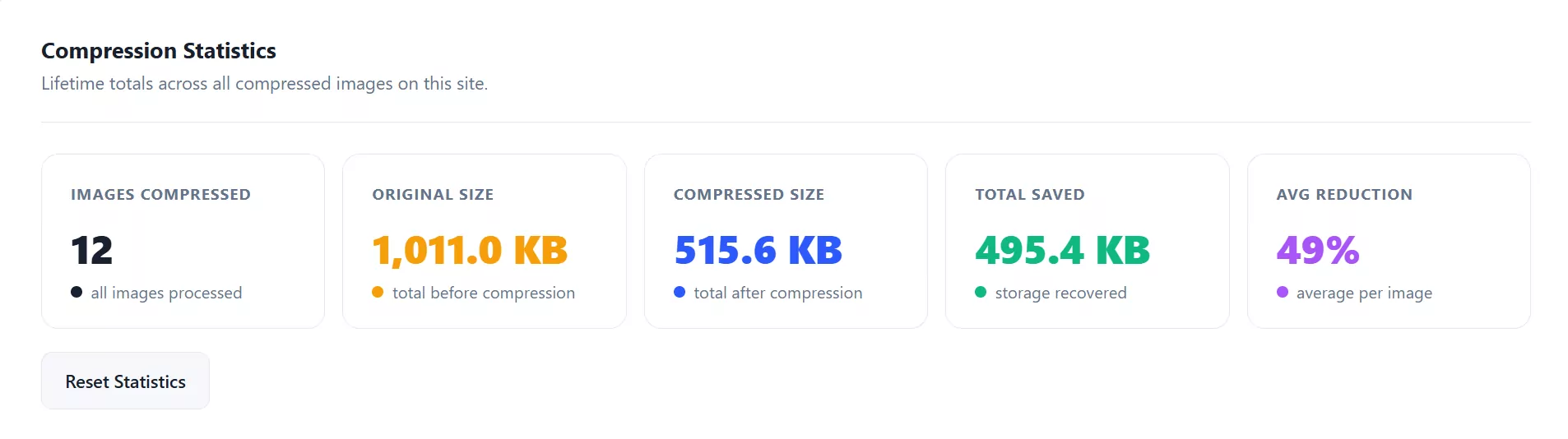
After regenerating thumbnails, check the Compression Statistics dashboard to see your cumulative savings. If regenerated thumbnails are larger than expected, consider reducing the quality slider and regenerating again.
Frequently Asked Questions
Do I need to back up before regenerating thumbnails?
Thumbnail regeneration rewrites the intermediate sizes (thumbnail, medium, large etc.) but does not touch the original full-size file. However, it is always good practice to back up your uploads folder before any bulk operation.
How long does regenerating thumbnails take?
It depends on library size and server speed. The plugin processes three images at a time in the background. A 500-image library typically takes 5–15 minutes on shared hosting. The progress bar shows a real-time estimate.
Will regenerating thumbnails improve my site speed?
Yes, if your thumbnails were previously generated at a lower quality setting (such as WordPress's default 82%) and you have since set a better quality level, or if you are switching to WebP output. Regeneration brings all sizes in line with your current settings.
Can I stop regeneration partway through?
Yes. Click the Stop button at any time. Images already regenerated are saved. You can resume by clicking Regenerate All Thumbnails again — it processes the full library each time, but already-correct thumbnails are regenerated quickly.
Does regeneration affect the original uploaded file?
No. Regeneration only recreates the intermediate thumbnail sizes. The original (full-size) file on disk is untouched unless you also run Bulk Compress, which does modify originals.
Further Reading
For more information on image optimisation and WordPress performance, the following resources are recommended:
How to Resize WordPress Images
Covers all four levers: quality, format, dimensions, and lazy loading.