








Default scrolling on most websites is fine — but "fine" isn't the impression a premium site wants to leave. Smooth, eased scrolling makes a Divi site feel more refined and intentional the moment a visitor starts moving down the page. The good news is you can add it in a few minutes without writing a line of code.
Here's how to set up smooth scrolling in Divi using Divi Smooth Scroll.
What smooth scrolling does (and when to use it)
Smooth scrolling replaces the browser's abrupt, jumpy scroll with a gentle, momentum-based motion. It's a subtle effect, but it lifts the perceived quality of a site — especially portfolios, agencies, product pages, and anything design-led. It also pairs beautifully with scroll-triggered animations, which feel smoother when the scroll itself is eased.
A quick word of restraint: smooth scrolling should feel natural, not sluggish. The goal is polish, not a site that fights the visitor. We'll cover the right settings below.
Step 1: Install and activate the plugin
From your WordPress dashboard, install and activate Divi Smooth Scroll.
Step 2: Open the settings
Once active, open the plugin's settings panel from the DiviPerfect menu in your dashboard.
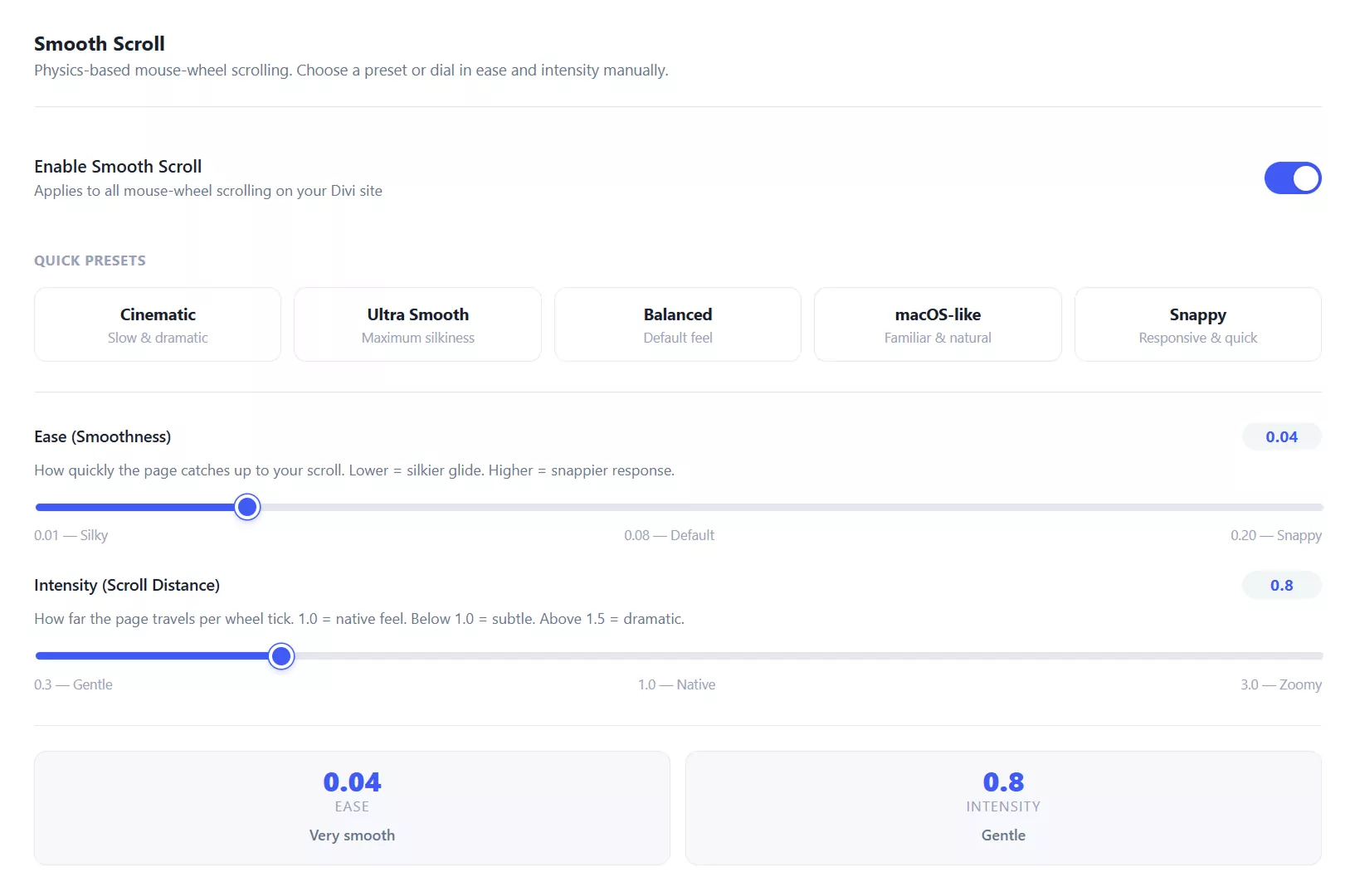
Step 3: Enable smooth scrolling and tune the feel
Turn smooth scrolling on, then adjust the scroll feel — the speed and easing — to taste. Start conservative: a little easing goes a long way, and an overly slow setting frustrates visitors. Preview as you go.
Step 4: Check mobile and save
Smooth scrolling behaves differently on touch devices, so confirm the experience feels right on mobile (or disable it there if it interferes with native touch scrolling). Then save your settings.
Step 5: Test on the front end
Open your live site and scroll. You should feel the eased motion immediately. Test a few different page types — a long blog post, a short landing page, and any page with scroll animations — to make sure it feels consistent everywhere.
Tips for getting it right
Keep the easing subtle so the site stays responsive to quick scrolls. Test on an actual phone, not just the browser's responsive preview, since touch scrolling feels different. And if you run scroll-based animations, enable smooth scroll first, then fine-tune the animations to match.
Frequently Asked Questions
Does smooth scrolling slow down my site?
No — it changes how scrolling feels, not how fast your pages load. Page speed depends on hosting, images, and caching. See our guide on how to speed up a Divi website.
Will smooth scrolling work on mobile?
It can, but touch devices already have their own momentum scrolling, so test it and decide whether to keep it enabled on mobile. The plugin lets you control this.
Can I turn it off on specific pages?
Smooth scroll is typically a site-wide effect. Check the plugin settings for any page-level controls, and disable it anywhere it conflicts with a custom interaction.
Final thoughts
Smooth scrolling is one of those small touches that quietly signals quality. A few minutes of setup gives every page on your Divi site a more refined feel.
Once it's in place, explore the rest of the DiviPerfect plugin suite for more polish-and-performance upgrades.