






One of the most common frustrations when building a Divi site is showing work-in-progress to a client. You put the site into maintenance mode while you build, but then the client needs to review a page — and the only way to let them in is to share your admin password, create a WordPress user account, or temporarily disable maintenance mode for everyone.
Divi Maintenance Mode 2.0 solves this with a secret bypass token. Here is how it works and how to use it.
What Is a Bypass Token?
A bypass token is a randomly generated string that acts as a secret key. When you share a link containing this token with a client, their browser recognises the token and shows them the real site instead of the holding page. No WordPress account required. No password sharing.
The token is generated server-side using a cryptographically secure method, so it cannot be guessed. You can regenerate it at any time from the Access tab, which immediately invalidates the old link.
How the Bypass Token Works
When a client clicks the bypass link, their browser sends the token to the server. The plugin validates it against the stored token. If they match, a session cookie called dmm_bypass is set in the client's browser.
That cookie means the client can navigate to any page on the site without the token in the URL on every visit. They simply browse normally. When they close the browser, the session cookie is cleared and they will need the link again next time.
Two Ways to Share Access
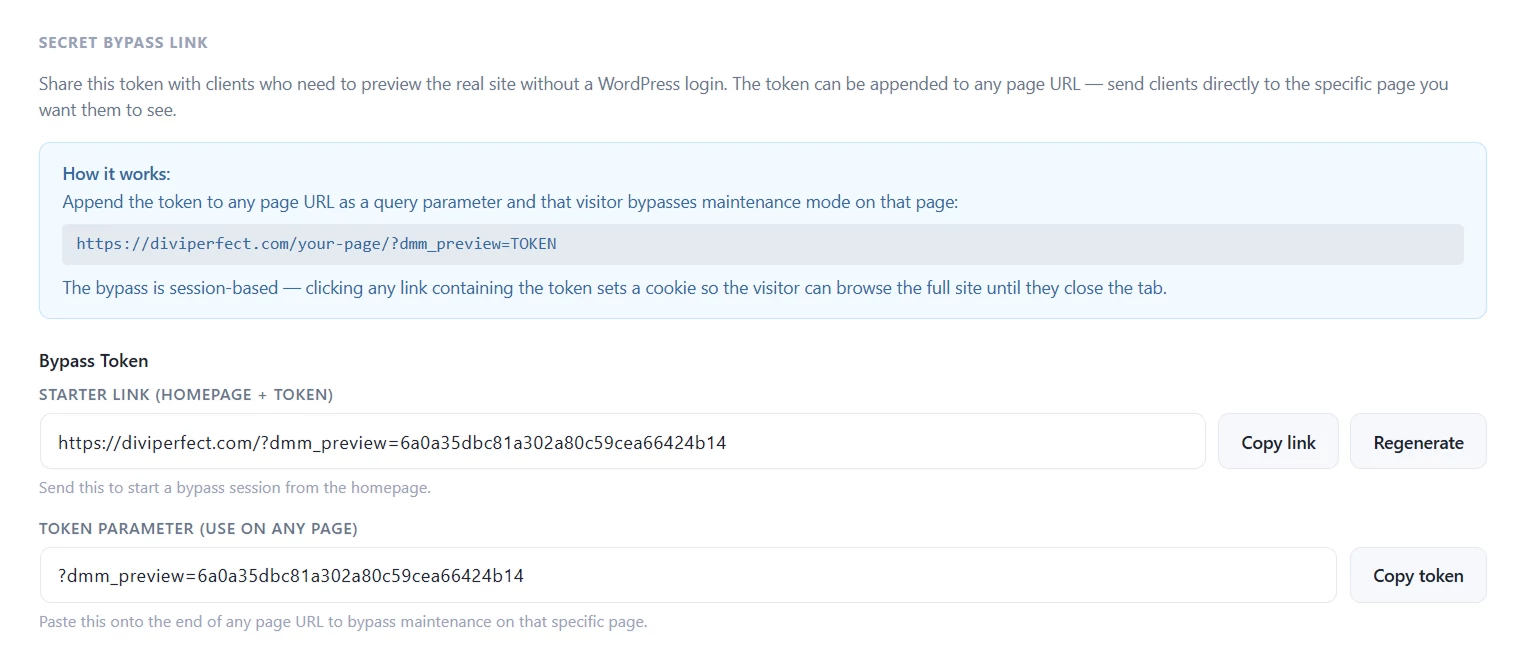
The Access tab gives you two copy fields for flexibility.
Option 1: The Starter Link
This is a full URL that takes the client directly to your homepage with the bypass token included. Send this when you want a simple one-click entry point. The client clicks the link, lands on the real homepage, and can navigate freely from there.
This is the option to use most of the time. Send the starter link, tell the client to click it first before navigating to anything else, and they will be able to review the entire site.
Option 2: The Token Parameter
This copies just the ?dmm_preview=TOKEN query parameter. You can append it to any specific page URL if you want to send a client directly to a particular page rather than the homepage.
For example, if you want a client to review a specific services page, copy the token parameter and append it to that page's URL: yoursite.com/services/?dmm_preview=TOKEN.
Regenerating the Token
If you need to revoke client access — for example, the project is complete or a team member has left — click Regenerate on the Access tab. The old bypass link immediately stops working. A new token and new links are generated that only you can see and share.
Other Access Control Options
The bypass token is one of four ways to control who sees the holding page in version 2.0.
Bypass by WordPress Role
Any logged-in WordPress user with the administrator role always bypasses the holding page. You can extend this to other roles — editor, author, contributor, or any custom role — from the Access tab. Useful if your client has a WordPress account with a limited role and you want them to preview without creating a separate bypass link.
IP Allowlist
Add IP addresses to the allowlist and any visitor from those addresses will see the real site automatically. This is ideal for your own office or studio, or for a client with a fixed IP address, since they will never see the holding page without needing a link or a login.
Per-Page Exclusions
Some pages may need to remain publicly accessible regardless of whether maintenance mode is on. The Access tab includes a list of all your published pages with checkboxes. Any pages you tick here will bypass the holding page for everyone — useful for contact pages, legal pages, or any page you need to keep live.

A Practical Workflow for Client Projects
Here is how this all fits together in a typical Divi project:
- Build your Divi site with maintenance mode enabled. You and your team can view the site normally because you are logged in as administrators.
- When a section is ready for client review, copy the starter link from the Access tab and send it to the client. They click it and can review the real site in their browser.
- If you want the client to review a specific page first, append the token parameter to that page URL and send that link instead.
- When the project is complete and the site goes live, disable maintenance mode. The bypass link automatically stops working once maintenance mode is off.
- If you need to share access with a different client on a future project, click Regenerate to get a fresh token.