







Oversized images are the single most common reason a Divi site feels slow. One un-optimized hero image can weigh more than your entire page should — and doing compression by hand, image by image, is tedious and easy to forget. The fix is to automate it. Here's how to compress images in Divi using Divi Image Compressor so your site stays fast without you thinking about it.
Why image compression matters so much
Images usually make up the largest share of a page's weight. When they're not compressed, every visitor downloads more data than they need to, which slows your load time, hurts your Core Web Vitals, and quietly drags down your search rankings. Compressing images shrinks their file size — often dramatically — while keeping them looking sharp. It's the highest-impact speed fix after good hosting.
Step 1: Install and activate Divi Image Compressor
From your dashboard, install and activate Divi Image Compressor.

Step 2: Open the settings and set your compression level
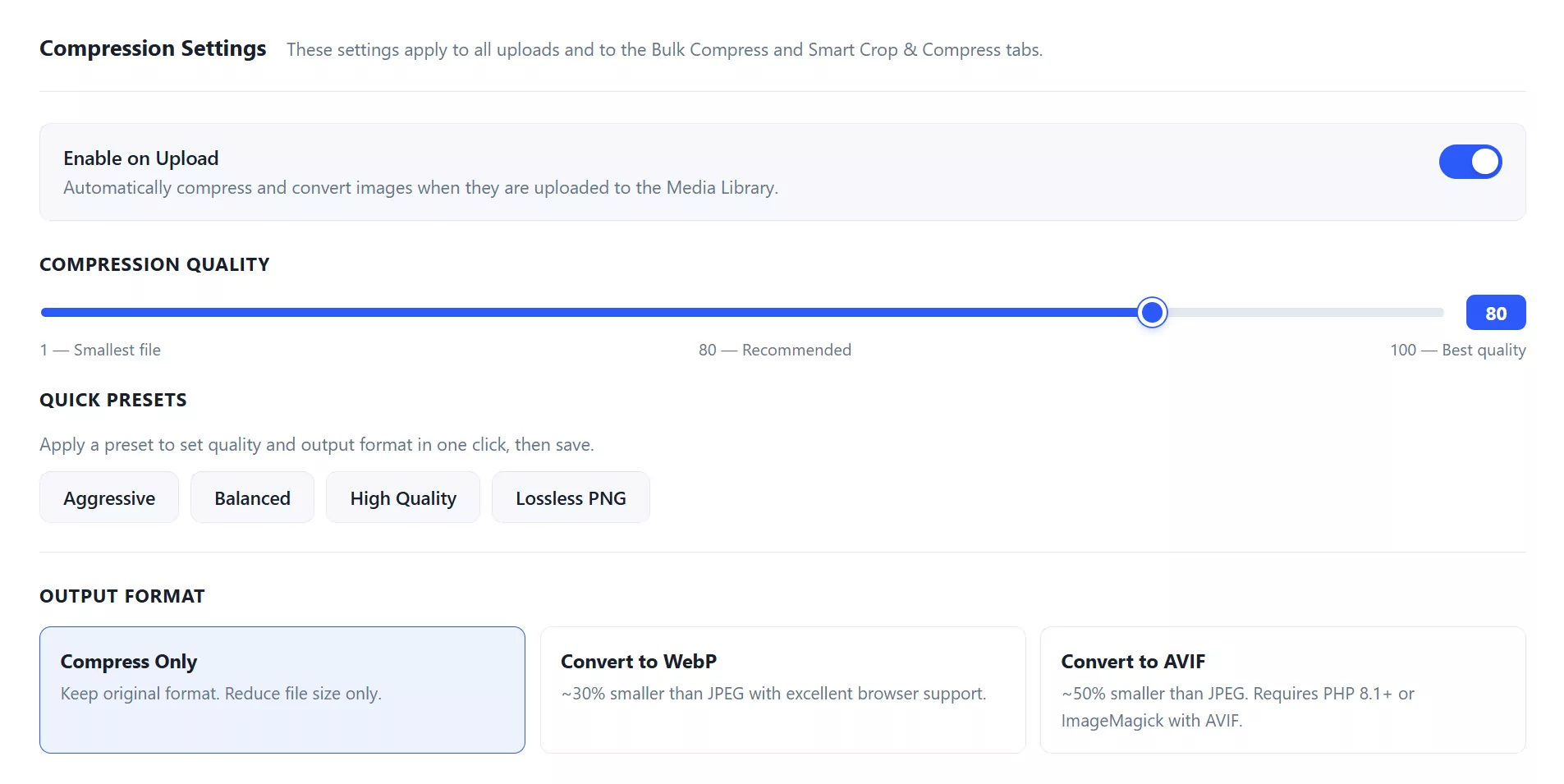
Open the plugin from the DiviPerfect menu and choose your compression level. A balanced setting gives you a big size reduction with no visible quality loss — start there and only adjust if you have a specific reason to.
Step 3: Enable compression on upload
Turn on automatic compression for new uploads. This is the setting that saves you forever — from now on, every image you add is optimized automatically before it ever loads for a visitor.

Step 4: Bulk-compress your existing images
If your site already has a media library full of heavy images, run a bulk compression to optimize them all in one pass. This can be the moment your site noticeably speeds u
Step 5: Verify the savings and re-test speed
Check the reported size reductions, then confirm the real-world impact by running your site through Google PageSpeed Insights before and after.

Tips
Set the right dimensions too — don't upload a 4000px-wide image into a 800px space; resize first, then let the plugin compress. Keep "compress on upload" on permanently so you never ship a heavy image again. And pair compression with caching and good hosting for the best overall result, as covered in our full Divi speed guide.
Frequently Asked Questions
Will compressing images reduce their quality?
At a balanced setting, the difference is invisible to the eye while the file size drops significantly. Only very aggressive compression starts to show, and you control the level.
Does this work on images I've already uploaded?
Yes. Bulk compression optimizes your entire existing media library, not just new uploads, so you can speed up an established site in one pass.
Do I still need image compression if I have caching?
Yes — they solve different problems. Caching speeds up page delivery; compression reduces how much each image weighs. You want both for a genuinely fast site.
Final thoughts
Image compression is the closest thing to a guaranteed speed win for a Divi site, and automating it means you only set it up once. Turn on compress-on-upload, bulk-optimize your library, and re-test your scores. Explore the full DiviPerfect plugin suite for more tools to keep your Divi site fast.